
The Always-Connected Person's Guide to Disconnecting
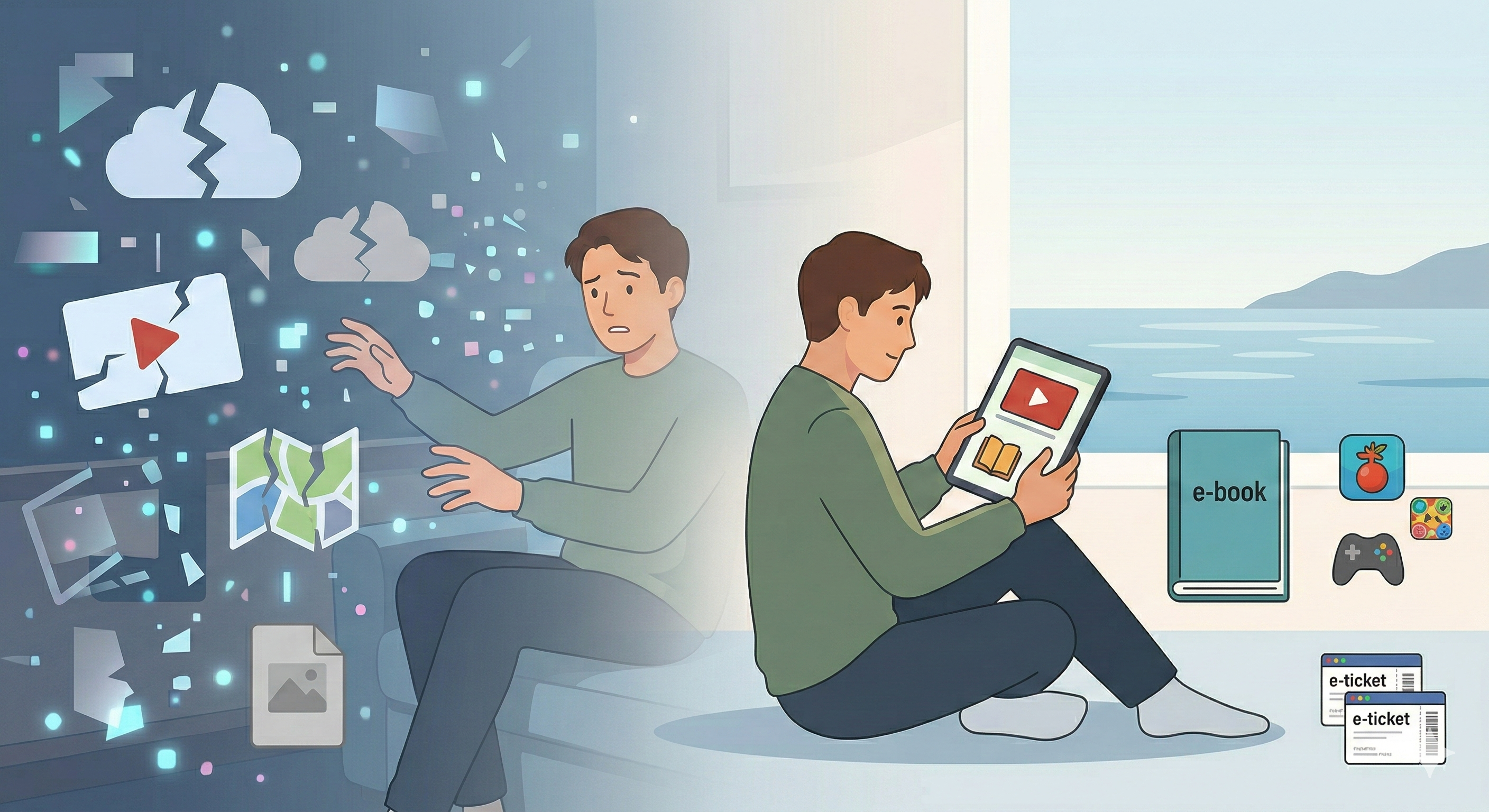
The reality of being always connected
We live in a world where constant connectivity isn't just expected - it's assumed. Our smartphones, tablets, and laptops are designed with the premise that we're always just a tap away from the cloud, from our data, from everything we need. But what happens when that connection disappears?
I recently discovered the answer on a cruise vacation. Without internet access - or at least, without internet that didn't cost a small fortune per hour - I planned to organize my photos, update a couple of in-progress articles, and enjoy some videos and games I'd saved offline. I figured I was prepared.
I wasn't. My downloaded shows played fine, but I'd only grabbed episodes of one series. When I got bored with it, I had nothing else queued up. My YouTube downloads were all on the same topic, and I burned through them faster than expected. I'd even planned to play a few mindless games to help me fall asleep, but I'd recently cleaned most of them off my phone. I remembered the idea of having games, not the reality of what was actually on my device.
None of it was a disaster. But it was a clear reminder that "offline" only works when you plan for it - and that the bigger issue isn't our dependence on connectivity. It's that our devices do a poor job of telling us what will and won't work without it. There's rarely a clear indication of which features require internet, which content is truly downloaded versus cached, or what setup you need to do ahead of time to make your offline experience feel normal.
That problem isn't unique to me or to cruise ships. It's baked into how modern software is designed.
The offline illusion: what doesn't work (and why)
Most software is built for a world where the network is usually available. Licensing systems assume periodic check-ins. Cloud storage assumes placeholder files. Security assumes real-time verification. None of that is inherently bad - but it means "going offline" is less like flipping a switch and more like navigating a set of hidden requirements nobody warned you about.
Here are the most common places that breaks down:
- Streaming apps with "downloads": Many services require periodic authentication checks, so your downloaded content can become inaccessible after a certain window without connection. Spotify, for example, requires you to go online at least once every 30 days to keep your downloads active. Netflix has its own expiration timers that vary by title.
- Cloud-synced documents: Files you thought were on your device may only be stored as placeholders, requiring internet to actually open them.
- Apps with hidden connection requirements: Even apps that seem like they should work offline often need to "phone home" to verify licenses, update features, or sync settings.
- Navigation and maps: Downloaded map areas may not include all the features you expect, like search or real-time routing, without connectivity.
- E-books and audiobooks: DRM protection often requires periodic online verification, even for content you've purchased and downloaded.
Preparing for disconnection: a 15-minute offline dry run
The most reliable way to get ready for offline isn't a longer checklist. It's a quick rehearsal. While you still have solid internet, set aside 15 minutes, flip on airplane mode, and work through the following. Most of the surprises will show up on your couch instead of on a boat or a plane.
- Turn on airplane mode. Turn Wi-Fi back on only if you specifically want to test "no cellular" rather than "no internet."
- Open every app you plan to use offline. Some quietly expire sessions, some prompt for a login after an update, and some need a "first open" to finish setup or refresh licenses. If an app asks you to sign in, do it now.
- Play a downloaded show or video. Then check that you've downloaded enough variety - a backup show, videos across different topics, not just one rabbit hole.
- Open a book, audiobook, or PDF - especially anything with DRM. These often require periodic online verification, even for purchased content.
- Launch any game you plan to play. Make sure it's still installed and doesn't need a connection to start.
- Open a document or photo editor and make a small edit. Crop a photo, tweak a sentence, and save. Confirm the save actually works.
- Pull up your downloaded maps and search for a place. Some map features don't work offline even when the map itself is downloaded.
- Mark key files and folders as "available offline." Cloud-synced files may only be placeholders until you explicitly pin them.
- Save tickets, reservations, and boarding passes to a wallet app or as screenshots.
- Confirm your password manager and 2FA work offline.
- Check streaming download expiration windows. Spotify requires going online every 30 days; Netflix expiration varies by title.
- Fix anything that failed while you can still troubleshoot. Re-download content, re-authenticate apps, and save backups (screenshots, PDFs, wallet passes) for anything critical.
One last thing: download for boredom, not just for plans. A couple of episodes of your current show, a backup show or movie, videos across a few different topics, at least one game, and a book or podcast for when you don't feel like looking at a screen. Variety sounds obvious right now. It's a lot less obvious when you're packing in a hurry and downloading "just enough."
Disconnect on your terms
Going offline is still entirely possible. It just requires acknowledging that many "offline" features are really "offline until we feel like checking your account again."
With a quick audit, a few targeted downloads, and a real airplane-mode test, you can turn disconnection from a surprise into a choice - and maybe even enjoy it.